
Quick answer: in the TripCache app, open Profile → AI agents and copy the TripCache link. In Claude, add it under Settings → Connectors → Add custom connector. In ChatGPT, add it as a custom MCP server with OAuth. The assistant then opens a TripCache page: approve the connection on your phone, and you can ask "When's my next flight?" and get an answer from your own bookings.
This works because TripCache, the travel app that holds your bookings, runs a connector ChatGPT and Claude can use. Connecting an AI assistant is a TripCache Pro feature. Siri, Shortcuts and Spotlight work on the free plan; see ask Siri about your flight.
Key takeaways
- The assistant reads the trips already in TripCache. It doesn't read your inbox.
- You choose what it can do: read only, or also add plans and expenses.
- In Claude and ChatGPT, answers come with cards that look like TripCache's widgets.
- You can disconnect any assistant from the app at any time.
What you need before you start
- TripCache Pro on your account. Check plans and prices.
- The TripCache app on your phone, signed in. You approve every new connection there.
- An AI assistant that accepts custom connectors. Claude and ChatGPT both do, with plan limits set by Anthropic and OpenAI (covered below). For Gemini, Grok, Perplexity and self-hosted agents, see which AI assistants can read your travel bookings, or pick yours from the AI agent setup guides.
TripCache uses the Model Context Protocol (MCP), the open standard both assistants use for connectors. You don't need to know how it works. You only paste one link.
Step 1: Copy your TripCache link
- Open TripCache and go to Profile.
- Tap AI agents.
- Pick the assistant you use. TripCache shows the steps for it.
- Tap Copy next to the TripCache link.
The link is the same for everyone. It doesn't contain your password or a token, so copying it into another app gives nobody access. Access only starts once you approve it in step 3.
Step 2: Add TripCache to Claude or ChatGPT
Claude
- In Claude, open Settings → Connectors (on the web, Customize → Connectors).
- Choose Add custom connector.
- Name it TripCache and paste the link.
- Tap Connect.
Anthropic's custom connector guide says custom connectors work on Free, Pro, Max, Team and Enterprise plans, with one custom connector on the free plan. On Team and Enterprise, an owner adds it for the organization first.
In a chat, turn TripCache on from the + menu under Connectors if it isn't already. The Claude setup guide shows every step in a 39-second video.
ChatGPT
- Open the connector settings and choose Add custom MCP server (TripCache's in-app steps show the current menu path).
- Paste the TripCache link and choose OAuth for authentication.
- Continue to sign-in.
OpenAI moves this setting between plans and menus. Some plans first need Developer mode, found under Settings → Apps → Advanced settings, and Business or Enterprise workspaces may need an admin to allow custom connectors. Dots, ChatGPT's always-on agents, use the same connectors, so they can use TripCache once it's added. The ChatGPT setup guide walks through it in a 39-second video.
Step 3: Approve the connection on your phone
When you connect, the assistant opens a TripCache page in your browser. You have two ways to approve:
- Approve with the TripCache app. Enter your account email. TripCache sends a request to your phone and shows a number on the page. Open the request in the app and pick the same number.
- Sign in on the page with your TripCache account, then allow access.
Before you allow it, choose what the assistant may do:
- What the assistant can do
- See your trips, flights, bookings, documents list and expenses
- What the assistant can do
- Add a booking to a trip, log an expense, and import a booking for you to review
| Permission | What the assistant can do |
|---|---|
| Read (always on) | See your trips, flights, bookings, documents list and expenses |
| Add plans and expenses (optional) | Add a booking to a trip, log an expense, and import a booking for you to review |
Leave the second box off if you only want answers. You can change your mind later by disconnecting and connecting again.
What to ask ChatGPT or Claude about your trip
Start with plain questions. The assistant picks the right TripCache tool for each one.
- What comes back
- Your next flight with times, gate and status
- What comes back
- The whole trip: flights, stay, plans by day, budget and checklist
- What comes back
- The hotel with check-in and check-out times
- What comes back
- The rental car with pick-up and drop-off
- What comes back
- Expenses by category against your budget
- What comes back
- The new booking, added to the trip
- What comes back
- The expense, with the trip's new total
- What comes back
- A draft you review and confirm in the app; it uses your monthly import allowance
| Ask | What comes back |
|---|---|
| "When's my next flight?" | Your next flight with times, gate and status |
| "Show my Melbourne trip" | The whole trip: flights, stay, plans by day, budget and checklist |
| "Where am I staying in Melbourne?" | The hotel with check-in and check-out times |
| "Where do I pick up my car?" | The rental car with pick-up and drop-off |
| "How much have I spent on this trip?" | Expenses by category against your budget |
| "Add a Hertz car to my Melbourne trip, pick-up Tuesday 10:30 am at the airport" | The new booking, added to the trip |
| "Log a 42 dollar taxi to my Tokyo trip" | The expense, with the trip's new total |
| "Import this confirmation" (with the email text or PDF) | A draft you review and confirm in the app; it uses your monthly import allowance |
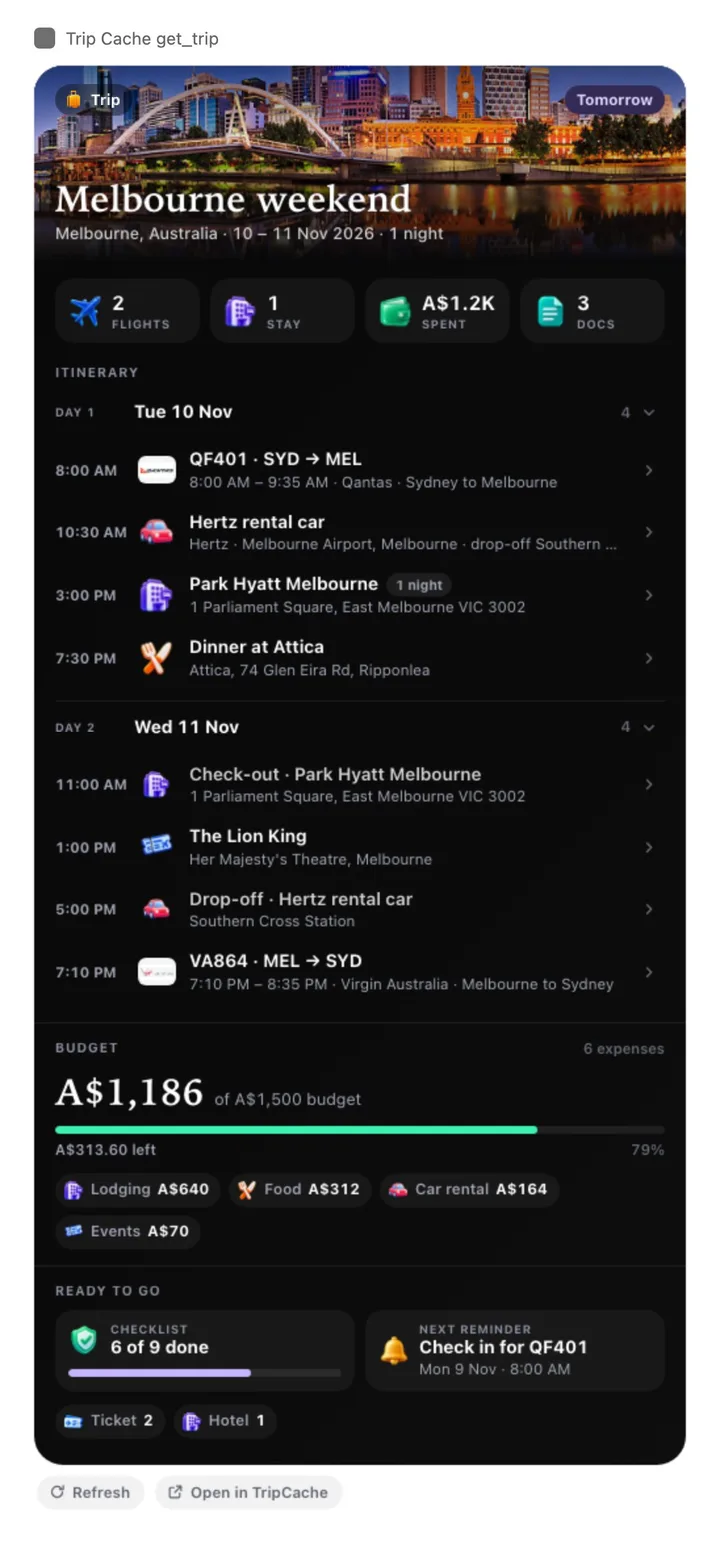
Cards in the chat
In Claude and ChatGPT, TripCache answers with cards drawn in the same design as its iPhone widgets. A flight shows its route, times, gate and a countdown. A hotel or car shows its dates and times. Each card has Refresh and Open in TripCache.
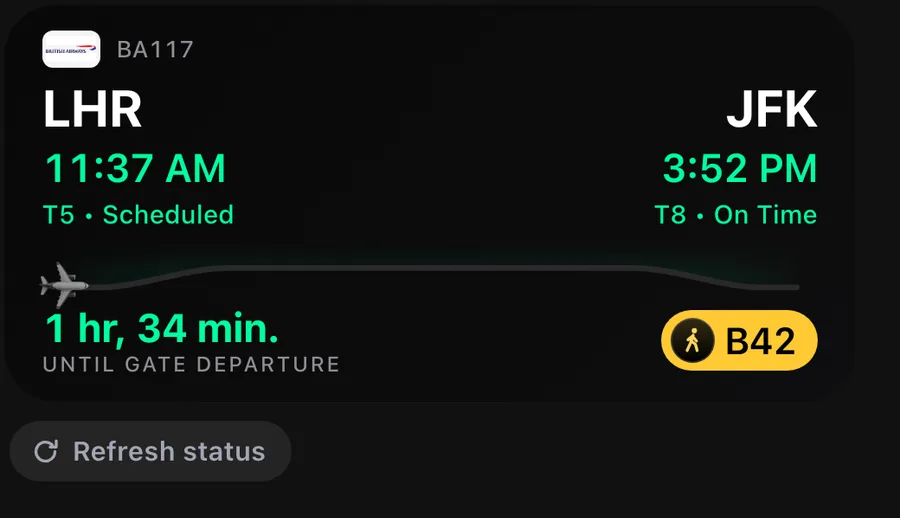
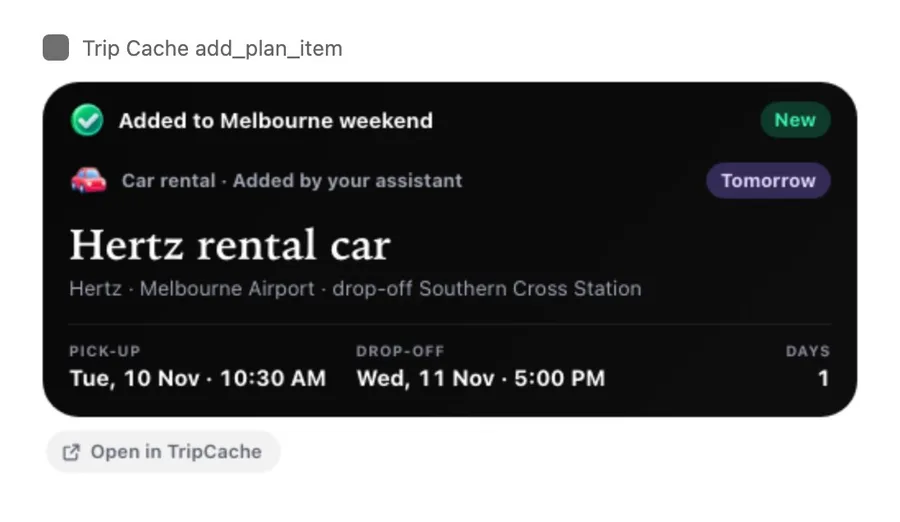
Other assistants that don't support cards still get the same facts as text.
What the assistant can and can't see
- It reads what's in TripCache, nothing else. It doesn't scan your email or your other apps. Bookings get into TripCache the usual ways: forwarding confirmation emails or adding them by hand.
- Booking notes, confirmation numbers and booking prices aren't shared with the assistant. For documents it sees names and types, not the files. Expenses you've logged are shared, so it can answer budget questions.
- Nothing is booked or paid for. "Add a car" adds a booking you already made to your trip. It doesn't reserve one.
- Everything is checked on every request. If you disconnect an assistant, its next request is refused.
How to disconnect an assistant
Open Profile → AI agents in TripCache. Each connected assistant is listed with what it can do and when it last used your account. Tap Revoke to cut it off.
If your Pro plan ends, connected assistants stay listed but their requests are refused with a message that the feature needs TripCache Pro. They work again when Pro is back, without reconnecting.
If something doesn't work
- The assistant says it can't reach TripCache. Check that the connector is turned on in this chat, then try again.
- "TripCache Pro required." The account you approved with doesn't have Pro. Sign in with the account that does, or upgrade.
- The approval page timed out. Requests expire after a few minutes. Start the connection again from your assistant.
- No custom connector option. Your assistant's plan may not allow it. Check the plan notes above.
Conclusion
Connecting takes three steps: copy the link, add it in Claude or ChatGPT, approve on your phone. After that, "when's my next flight" gets an answer from your actual booking instead of a guess.
If your trips aren't in TripCache yet, start there: download TripCache, forward a few confirmations, then connect your assistant. For the broader picture of what AI can do with booked travel, read AI travel organizer apps. To pair TripCache with booking and planning connectors such as Expedia and Tripadvisor, see the best Claude connectors for travel. Moving from TripIt, which has no connector? Read does TripIt work with Claude or ChatGPT? To see the same trips in Apple, Google or Outlook Calendar, subscribe to a live trip calendar, which is free.
Frequently asked questions
Can ChatGPT see my flight bookings?
Only if you connect it to an app that holds them. ChatGPT can't see your airline bookings on its own. If you add TripCache as a custom connector and approve it on your phone, ChatGPT can read the flights, hotels and other bookings saved in your TripCache trips. Connecting AI assistants needs TripCache Pro.
How do I add a custom connector in Claude?
Open Settings, then Connectors, and choose Add custom connector. Give it a name, paste the server link and tap Connect. For TripCache, copy the link from Profile, then AI agents in the app. Anthropic allows one custom connector on Claude's free plan and more on paid plans.
Is connecting ChatGPT or Claude to TripCache free?
No. Connecting AI assistants is part of TripCache Pro. Asking Siri about your flight, using Shortcuts and finding trips in Spotlight are free on iPhone. Your AI assistant may also need a plan that allows custom connectors, which Anthropic and OpenAI set.
Can the AI assistant book or pay for travel through TripCache?
No. TripCache doesn't book or sell travel. If you allow it, the assistant can add a booking you already made to a trip, log an expense, or import a booking as a draft for you to review. It can't reserve, pay for or cancel anything.
What does the assistant see when I connect TripCache?
It sees your trips, flights, bookings, the names and types of your documents (not the files) and the expenses you logged. TripCache leaves out booking notes, confirmation numbers and booking prices. It never reads your email inbox; bookings only reach TripCache when you forward them or add them yourself.
How do I disconnect ChatGPT or Claude from TripCache?
Open the TripCache app, go to Profile, then AI agents, and tap Revoke next to the assistant. Its next request is refused. You can also remove the connector inside Claude or ChatGPT, but revoking in TripCache is what cuts off access.