
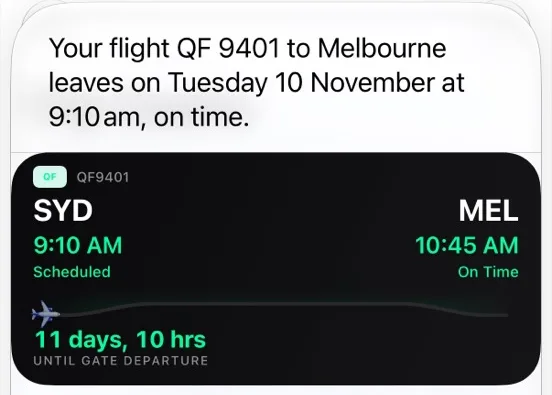
Quick answer: say "When's my next flight in TripCache?" Siri answers out loud ("Your flight QF 9401 to Melbourne leaves on Tuesday 10 November at 9:10 am, on time") and shows a flight card with the times and a countdown. Include "TripCache" in the question: without an app's name, Siri sends flight questions to Apple's own apps instead.
Siri, Shortcuts and Spotlight are free in TripCache. You don't need Pro.
Key takeaways
- Say the app's name: "…in TripCache" or "Ask TripCache…".
- The first time, Siri asks to turn on TripCache shortcuts. Tap Turn On.
- Siri answers for flights, gates, baggage belts, hotels, rental cars and the next thing on your trip.
- The same actions are in the Shortcuts app, and your trips show up in Spotlight search.
Why Siri needs the app's name
Apple lets Siri answer some questions without naming an app, but only for kinds of app Apple has defined, such as mail, notes, photos and calendar. There's no travel or flight category yet.
So when you ask "When's my next flight?" with no app name, Siri uses Apple's own flight handling, which looks in Mail, Wallet and Calendar. If your flight isn't there, you'll hear something like "I couldn't find any upcoming flight information." That answer comes from Siri, not TripCache.
Add "in TripCache" or start with "Ask TripCache", and Siri runs TripCache's answer instead. Siri also understands "Trip Cache" said as two words.
Turn it on the first time
- Open TripCache once after updating, so it can share your upcoming trips with Siri.
- Say "When's my next flight in TripCache?"
- Siri asks Turn on "Trip Cache" shortcuts with Siri? Tap Turn On. iPhone asks this once per app.
- Ask again. From now on, Siri answers straight away.
What to ask Siri: every TripCache phrase
You don't have to say these word for word. Siri matches close variations, and each one also works with "Ask TripCache…" at the start.
Your next flight
- "When's my next flight in TripCache?"
- "Ask TripCache when my next flight is."
- "When's my next flight with TripCache?"
A specific flight
- "When's my flight to Sydney in TripCache?"
- "When's my QF 9450 flight in TripCache?"
Siri matches the flight by destination city, airport code, flight number or airline, so "my flight to London", "my LHR flight" and "my British Airways flight" all work.
Gate and terminal
- "What gate is my flight in TripCache?"
- "What gate is my flight to Melbourne in TripCache?"
- "Ask TripCache what gate I'm at."
If the airline hasn't announced the gate, Siri says so: "The gate for QF 9401 to Melbourne isn't announced yet."
Baggage belt after landing
- "Where are my bags in TripCache?"
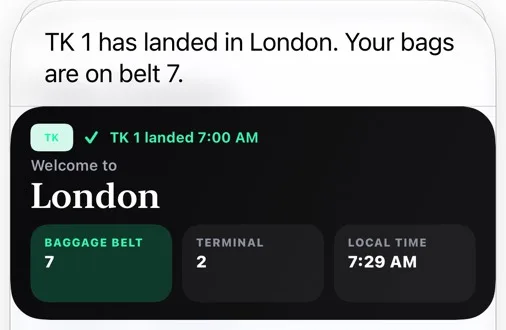
After landing, the card switches to the arrival view: "TK 1 has landed in London. Your bags are on belt 7."
Hotel, rental car and the rest of the trip
- "Where am I staying in TripCache?"
- "What's my hotel for my Melbourne trip in TripCache?"
- "Where do I pick up my car in TripCache?"
- "What's next on my trip in TripCache?"
- "When is my dinner in TripCache?"
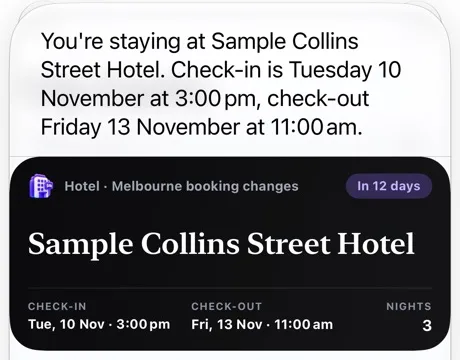
For a hotel, Siri gives the check-in and check-out times and shows a card with the number of nights. Booking times are in the hotel's or venue's local time, the same as in the app.
Where Siri gets your flight's gate and status
Siri answers from the trips already on your phone, so it replies quickly, even with a weak signal. The gate, terminal, belt and delay are the latest that TripCache has for that flight.
- With live flight status alerts (part of TripCache Pro), TripCache keeps gate, delay and belt changes up to date, and Siri reads the newest ones.
- On the free plan, Siri still answers with your flight times, airports and booking details.
Siri only knows flights that are in TripCache. Add them by forwarding your confirmation email or by entering the flight yourself.
Shortcuts: the same answers without speaking
Every TripCache answer is also an action in the Shortcuts app. Open Shortcuts → Apps → Trip Cache to see:
- What it does
- Shows your next flight card
- What it does
- Gate and terminal, or the belt after landing
- What it does
- Your current or next stay
- What it does
- Pick-up and drop-off details
- What it does
- The next booking on your trip
- What it does
- Opens a trip in TripCache
- What it does
- Opens Add Expense for a trip, with the amount filled in
| Shortcut | What it does |
|---|---|
| Next Flight | Shows your next flight card |
| Flight Gate | Gate and terminal, or the belt after landing |
| Hotel | Your current or next stay |
| Car Rental | Pick-up and drop-off details |
| What's Next | The next booking on your trip |
| Open Trip | Opens a trip in TripCache |
| Add Expense | Opens Add Expense for a trip, with the amount filled in |
TripCache also lists one shortcut per upcoming flight and per trip, such as "QF 9401 to Melbourne". Add any of them to your Home Screen, or use them in an automation. Apple's Shortcuts User Guide explains both.
Add Expense doesn't save anything by itself. It opens the expense form with the trip, amount and currency filled in, and you tap Save.
Spotlight: find a trip by typing its name
Swipe down on the Home Screen and type a destination, such as "Adelaide". The trip appears under Trip Cache with its dates; tap it to open the trip. Bookings appear too, so "Collins Street" finds the hotel.
Android
On Android, touch and hold the TripCache icon for three free app shortcuts: your next flight, your current trip and add an expense. Drag one onto the home screen to pin it; pinned shortcuts update their label as your trips change (for example "QF 9401 to Melbourne").
You can't ask Gemini about TripCache yet. Google only lets Gemini call other apps' actions for apps in its early-access programme, and TripCache isn't in it yet. For flight details at a glance, TripCache Pro also has an Android home-screen widget and an ongoing notification.
To see your flights in Google Calendar instead, subscribe to a live trip calendar. It's free.
If you'd rather ask in a chat than by voice, connect ChatGPT or Claude to your trips (TripCache Pro).
Conclusion
The trick is the app name: "When's my next flight in TripCache?" gets you a spoken answer and a flight card; leave it out and Siri looks elsewhere. Turn on TripCache shortcuts the first time, and the same answers work for gates, bags, hotels and cars.
Download TripCache, add your next trip, and try it from the lock screen. The phrases and shortcuts are free.
Frequently asked questions
How do I ask Siri when my flight is?
Name the app that holds your booking. With TripCache, say "When's my next flight in TripCache?" or "Ask TripCache when my next flight is." Siri reads out the departure time and status and shows a flight card. Without an app name, Siri only checks Apple's own apps, such as Mail, Wallet and Calendar.
Why does Siri say it can't find my flight?
Usually because the question didn't name an app. Siri then checks only Mail, Wallet and Calendar. Add "in TripCache" to the question. If Siri asks to turn on Trip Cache shortcuts, tap Turn On, then ask again. The flight also has to be saved in TripCache.
Can Siri tell me my gate number?
Yes. Say "What gate is my flight in TripCache?" Siri gives the gate and terminal once the airline announces them, or tells you the gate isn't announced yet. Live gate changes come from TripCache's flight status alerts, which are part of TripCache Pro.
Is TripCache's Siri support free?
Yes. Asking Siri, using the TripCache actions in Shortcuts and finding trips in Spotlight are all free. Live flight status alerts, which keep gates and delays up to date, and connecting AI assistants such as ChatGPT or Claude are part of TripCache Pro.
Can Siri add an expense to my trip?
Partly. The Add Expense shortcut opens TripCache's expense form with the trip, amount and currency filled in, and you tap Save to keep it. Nothing is saved without you confirming it in the app.
Does TripCache work with Gemini on Android?
Not yet. Gemini can only call actions in apps that are in Google's early-access programme, and TripCache isn't in it yet. On Android you can touch and hold the TripCache icon for free shortcuts to your next flight, your current trip or a new expense, and TripCache Pro adds a home-screen widget and an ongoing notification.