
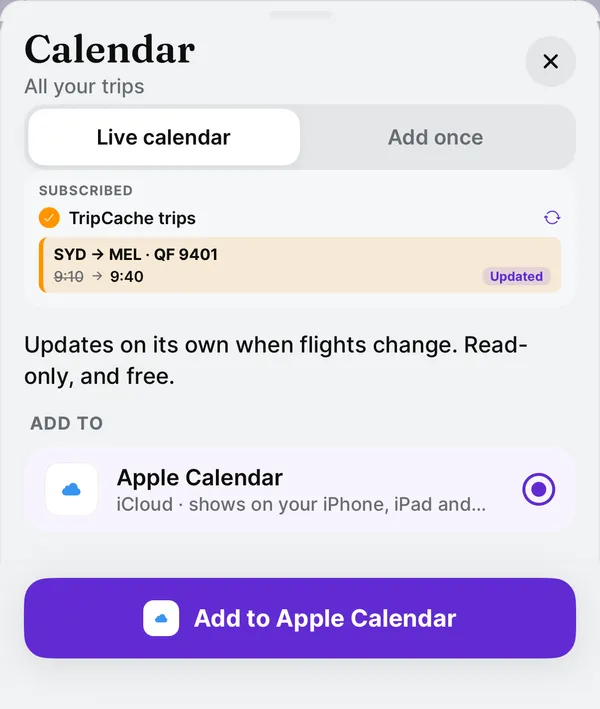
Quick answer: subscribe your calendar to a live trip calendar instead of adding events one by one. A live calendar is a read-only link (an ICS feed) that your calendar app checks on its own, so a retimed flight, a new hotel or a cancelled booking changes there too. In TripCache, open Calendar, choose Live calendar, pick Apple Calendar, Google or Outlook, and confirm. It's free on every plan.
Key takeaways
- Live calendar = one subscribed calendar that follows your trips. Add once = copies you can edit, but they never update.
- Apple Calendar picks up changes fastest. Google Calendar decides its own schedule and can take hours, sometimes up to a day.
- The feed carries flight numbers, routes, times, terminals, gates, stays and plans. It never carries booking references, seats, ticket numbers, prices or notes.
- Anyone with the link can read it. If you shared it by mistake, make a New link and the old one stops working.
Why "add to calendar" goes stale
Most booking emails and travel apps offer an .ics file or an "Add to calendar" button. That copies the event into your calendar once. From then on, the calendar and the booking live separate lives:
- The airline retimes your flight by 30 minutes. Your calendar still shows the old time.
- You change hotels. The old stay is still blocking those nights.
- A flight is cancelled and rebooked. You now have two flights in the calendar, one of them wrong.
A subscribed calendar fixes this. Instead of a copy, your calendar app stores a link and fetches it again and again. Whatever the source says now is what you see.
Live calendar or add once?
- Live calendar (subscribed)
- Yes, on the calendar app's refresh schedule
- Add once (copy)
- No
- Live calendar (subscribed)
- No, read-only
- Add once (copy)
- Yes
- Live calendar (subscribed)
- Its own calendar, e.g. "TripCache trips"
- Add once (copy)
- Any calendar you pick, such as a shared family one
- Live calendar (subscribed)
- Seeing your whole travel schedule next to work and home
- Add once (copy)
- Putting one trip into a calendar other people already watch
| Live calendar (subscribed) | Add once (copy) | |
|---|---|---|
| Updates when the trip changes | Yes, on the calendar app's refresh schedule | No |
| Can you edit the events? | No, read-only | Yes |
| Where it shows | Its own calendar, e.g. "TripCache trips" | Any calendar you pick, such as a shared family one |
| Good for | Seeing your whole travel schedule next to work and home | Putting one trip into a calendar other people already watch |
Use one or the other for a trip. Using both shows each event twice. TripCache warns you when a trip is already in your live calendar and offers to remove old one-time copies.
What goes into the calendar
TripCache's live calendar includes your upcoming trips, either all trips or just one trip:
- Flights as timed events in the right time zones, named by flight number and route (for example "✈ QF 9401 SYD → MEL"), with the terminal and gate in the location when they're known. Cancelled flights are marked as cancelled.
- Hotels and other stays as all-day banners across the nights you're staying.
- Rental cars, trains, tours, restaurants and other plans at their booked times.
- A trip banner across the trip's dates, so you can see at a glance when you're away.
It deliberately leaves out booking references, seat numbers, ticket numbers, prices, notes and addresses. A calendar is often shared with family or an assistant, so the feed only carries what you'd be happy to show on a shared screen.
What makes events change: anything that changes in TripCache. That includes edits you make, bookings you add or remove, and, with TripCache Pro's live flight status, delays, new departure times, terminals and gates as the airline announces them. The calendar itself is free; live flight status is a Pro feature.
Set it up on iPhone (Apple Calendar)
- In TripCache, open a trip's tools and tap Calendar, or go to Settings → Calendar for all trips.
- Choose Live calendar, select Apple Calendar, and tap Add to Apple Calendar.
- iPhone opens Calendar on Add Subscription Calendar with the link filled in. Check the preview and tap ✓ in the top-right corner.
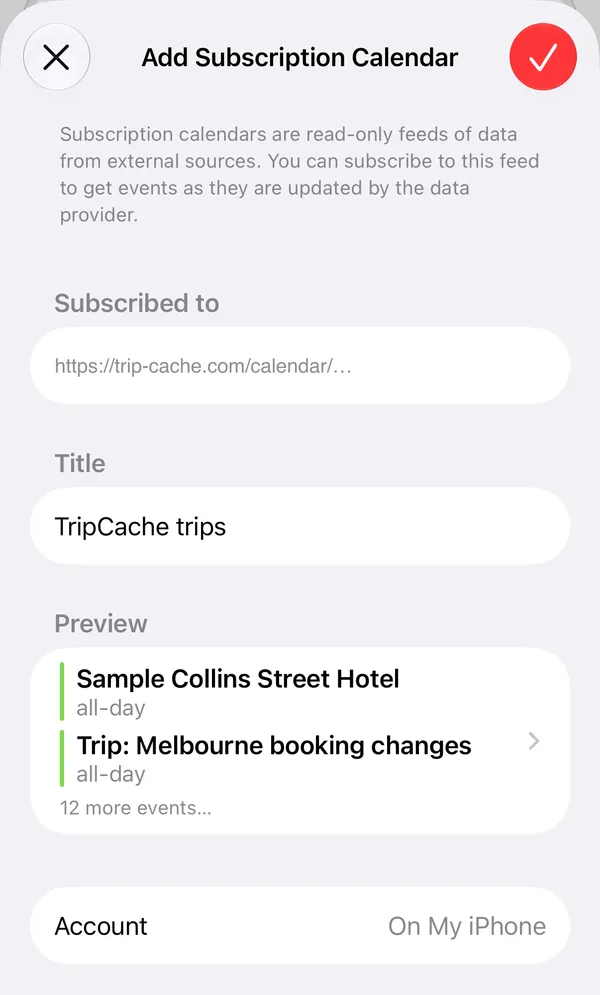
The new calendar appears under Subscribed in Calendar's list. Back in TripCache, the sheet confirms it once Calendar has fetched the feed for the first time.
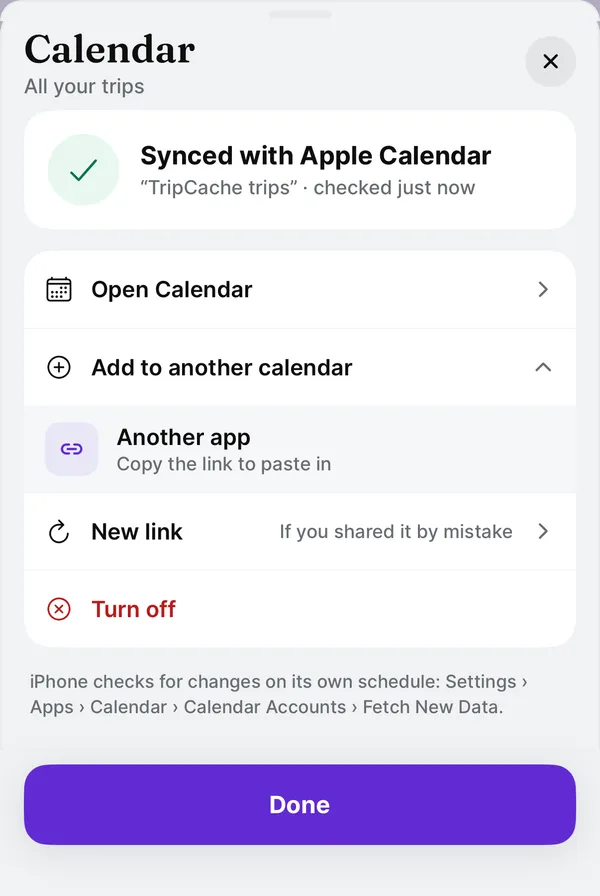
How often iPhone refreshes: Calendar checks subscribed calendars on its own schedule. You can change it in Settings → Apps → Calendar → Calendar Accounts → Fetch New Data. To see a change straight away, open Calendar and pull down on the calendar list.
Set it up in Google Calendar
On iPhone or Android, choose Google in TripCache's Live calendar tab, or do it by hand on a computer:
- In TripCache, choose Live calendar → Add to another calendar → Another app and copy the link.
- Open calendar.google.com on a computer. Next to Other calendars, click + and choose From URL.
- Paste the link and click Add calendar. It syncs to the Google Calendar app on your phone.
How often Google refreshes: Google decides. In practice it re-reads a subscribed calendar every few hours, and sometimes only about once a day, and there's no button to force it. If you need to see a last-minute gate change, check TripCache or the airline, not Google Calendar.
Set it up in Outlook
In Outlook on the web or Outlook.com, go to Add calendar → Subscribe from web, paste the TripCache link, name it, and import. Outlook refreshes subscribed calendars on its own schedule too, typically within a few hours.
Keep the link private
The calendar link is the key. Anyone who has it can read the feed, which is why it holds no booking references or prices. If you posted it somewhere or shared it by mistake:
- Open Calendar in TripCache and tap New link.
- The old link stops working on the next fetch. Add the new one to your calendar app.
To stop syncing, tap Turn off. The subscribed calendar empties and you can delete it from your calendar app.
Getting bookings into TripCache in the first place
A live calendar is only as good as the trip behind it. You can:
- Add flights, stays and plans by hand, or scan a boarding pass (free).
- Forward booking confirmation emails, PDFs and screenshots to your own TripCache address and review each draft before saving (Pro, with a monthly import allowance). See how email-to-itinerary import works.
Then the calendar follows along. If an overnight flight still looks wrong, read how flight time zones and +1 arrival dates work. Planning a trip on paper first? Start from a free travel itinerary template. You can also ask Siri when your next flight is (free) or let ChatGPT or Claude read your trips (Pro).
TripCache is on the App Store and Google Play. The live calendar is in the latest version.
Frequently asked questions
How do I add my flight itinerary to Google Calendar so it updates?
Subscribe to a live calendar link instead of importing an .ics file. In TripCache, choose Calendar, then Live calendar, then Google, or copy the link and add it in Google Calendar under Other calendars, From URL. Google re-reads subscribed calendars on its own schedule, usually every few hours and sometimes only once a day.
What is the difference between a subscribed calendar and an .ics file?
An .ics file copies events into your calendar once, and they never change after that. A subscribed calendar is a link your calendar app fetches again and again, so changes to the trip show up on their own. Subscribed calendars are read-only.
Is TripCache's live calendar free?
Yes. The live calendar and adding events once are free on every plan. Automatic delay, gate and terminal updates come from live flight status, which is part of TripCache Pro. Without Pro, the calendar still follows every change you make to the trip.
Why hasn't my calendar updated yet?
Your calendar app decides when to fetch the feed. Apple Calendar follows the Fetch New Data setting, and you can pull down on the calendar list to refresh. Google Calendar has no refresh button and can take several hours. TripCache itself always shows the latest version.
Can other people see my bookings through the calendar link?
Anyone who has the link can read the calendar, so share it only with people you trust. The feed leaves out booking references, seat and ticket numbers, prices and notes. If the link leaks, tap New link in TripCache and the old one stops working.
Can I sync just one trip instead of all of them?
Yes. Open the Calendar sheet from a trip's tools and choose that trip only, or open it from Settings for all trips. Each live calendar has its own link.
Does it work on Android?
Yes. A live calendar link works with Google Calendar and any calendar app that can subscribe to a web calendar. Adding events once uses the calendars on your phone.