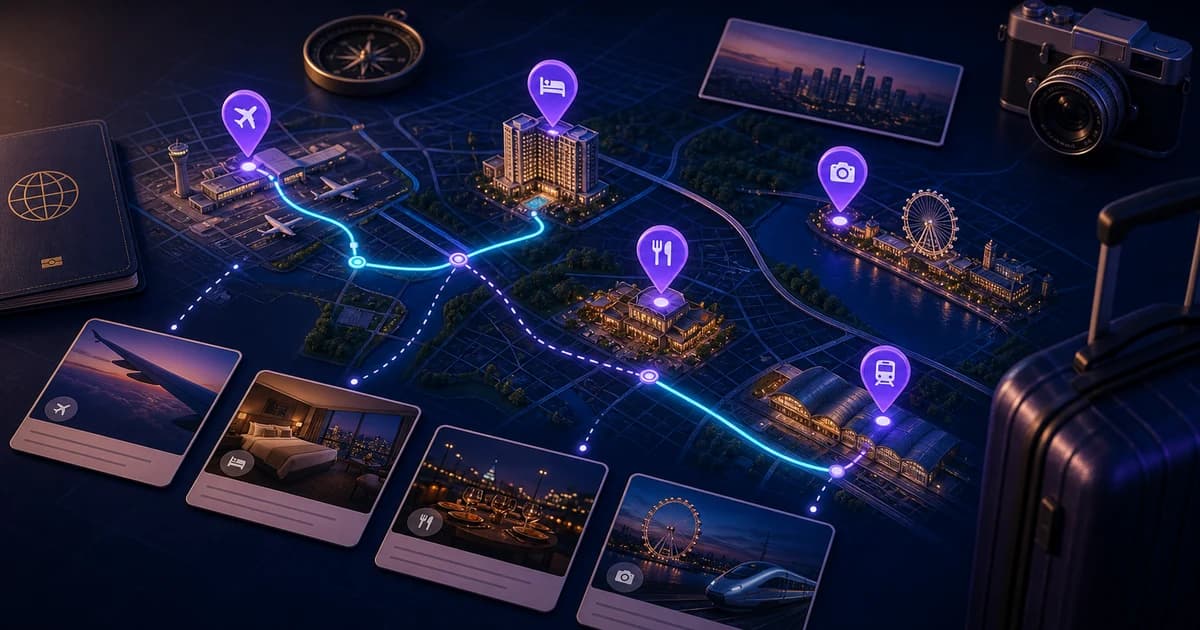
Quick answer: an email-to-itinerary app reads a travel confirmation you choose to forward, extracts useful booking details, and creates a structured trip item for review. The best workflow keeps the original confirmation as the authoritative record and asks you to verify dates, places, names, and cancellation terms before relying on the itinerary.
TripCache uses this review-first approach. Forward a supported booking email, check the draft, then add it to the right trip. You decide which messages leave your inbox.
Key takeaways
- Forwarding selected confirmations is different from granting permanent access to an entire inbox.
- Extraction saves retyping, but the airline, hotel, rental company, or ticket provider remains the source of truth.
- Review matters most for local times, overnight travel, booking references, passenger names, and refund deadlines.
What Is an Email-to-Itinerary App?
An email-to-itinerary app converts an unstructured confirmation into fields that are easier to use during a trip. Depending on the booking, those fields can include:
- Provider and reservation type.
- Departure, arrival, check-in, or pickup time.
- Airport, station, hotel, venue, or rental location.
- Confirmation or booking reference.
- Traveler or guest name.
- Attached PDF, ticket, or receipt.
- Cancellation terms that you can record as a reminder.
This is a post-booking workflow. It does not choose a destination or generate a day plan. If you are comparing those two jobs, read the guide to AI trip planners and travel organizers.
How the Workflow Operates
- What happens
- You forward a selected confirmation
- What you should check
- Correct message and latest revision
- What happens
- The app identifies useful booking fields
- What you should check
- Names, dates, local times, places, references
- What happens
- A draft is shown before it becomes part of the trip
- What you should check
- Missing legs, duplicate items, time zones, refund terms
- What happens
- The approved item is attached to an itinerary
- What you should check
- Correct trip and chronological position
- What happens
- Updates, documents, receipts, and reminders are added
- What you should check
- Original provider record still matches
| Stage | What happens | What you should check |
|---|---|---|
| Capture | You forward a selected confirmation | Correct message and latest revision |
| Extract | The app identifies useful booking fields | Names, dates, local times, places, references |
| Review | A draft is shown before it becomes part of the trip | Missing legs, duplicate items, time zones, refund terms |
| Organize | The approved item is attached to an itinerary | Correct trip and chronological position |
| Maintain | Updates, documents, receipts, and reminders are added | Original provider record still matches |
TripIt documents the established confirmation-forwarding model on its official how it works page. TripCache follows the same broad user action, forward a confirmation, but differentiates the next step with reviewable drafts, cancellation deadlines, documents, receipts, and expense records.
Forwarding Is Not the Same as Inbox Access
There are two common import models:
- Selective forwarding: you send individual booking messages to a dedicated address.
- Connected inbox import: you authorize a service to scan or retrieve messages that match its rules.
Selective forwarding gives you message-by-message control. Connected import can reduce manual work, but it requires a broader permission decision. Review the product's privacy policy and store disclosures before choosing either model.
TripCache uses selective forwarding for its email-to-trip workflow. The official App Store listing and Google Play listing are the best places to check current platform privacy disclosures.
Set Up a Reliable Email-to-Itinerary Workflow
1. Start With One Simple Confirmation
Choose an upcoming nonstop flight or a single hotel stay. A simple booking makes it easy to compare the draft with the original message.
2. Forward the Original Message
Forward the complete confirmation instead of copying selected text or sending a screenshot. The original structure gives the extractor more context, including labels, tables, attachment names, and provider details.
If you want to automate forwarding from Gmail, review Google's current automatic forwarding guidance before creating a filter. Broad filters can forward messages you did not intend to share, so keep the rule narrow and test it.
3. Review the Draft
Check each extracted field against the provider's confirmation:
- Traveler or guest name.
- Departure and arrival date.
- Local time and time zone.
- Origin and destination.
- Hotel check-in and checkout.
- Rental pickup and return.
- Confirmation number.
- Cancellation wording.
Accept the draft only when the important fields match.
4. Add the Item to the Correct Trip
Group the confirmation with the trip where you will need it. A structured itinerary becomes useful when flights, stays, rental cars, transport, activities, tickets, and meetings appear in one sequence.
5. Add Documents and Deadline Reminders
Keep useful PDFs, receipts, or tickets beside the booking. For a refundable reservation, record the exact cutoff from the provider and use the hotel cancellation deadline calculator if you need help translating the policy into a date and time.
What Can Go Wrong?
No booking parser should be treated as infallible. Common problem cases include:
- A forwarded thread contains both the original and a later change.
- A round trip is split across several messages.
- A hotel states its deadline in local property time.
- A provider uses an unusual attachment or image-based layout.
- The same confirmation is forwarded twice.
- A schedule change arrives after the first itinerary item was approved.
The safe response is not to guess. Keep the draft editable, compare it with the latest provider record, and use manual entry when the message is ambiguous.
Email Organizer, Itinerary App, or Both?
An inbox label helps you find the original confirmation. An itinerary app helps you use the details in chronological context. Many travelers benefit from both:
- Keep the original message in a travel label or folder.
- Use an itinerary app for the travel-day view.
- Open the provider's official app or website for final status and policy details.
For a full comparison of labels, folders, and structured trip tools, see how to organize travel confirmation emails. If your main concern is choosing one place for flights, stays, cars, and tickets, use the travel booking organizer guide.
Bottom Line
Email-to-itinerary automation is useful because it removes repetitive data entry, not because it removes judgment. Forward selected confirmations, review every important field, and keep the provider's record as the final authority.
TripCache is designed for that controlled post-booking workflow. You can review imported drafts, organize them by trip, attach documents and receipts, and add reminders for cancellation deadlines.