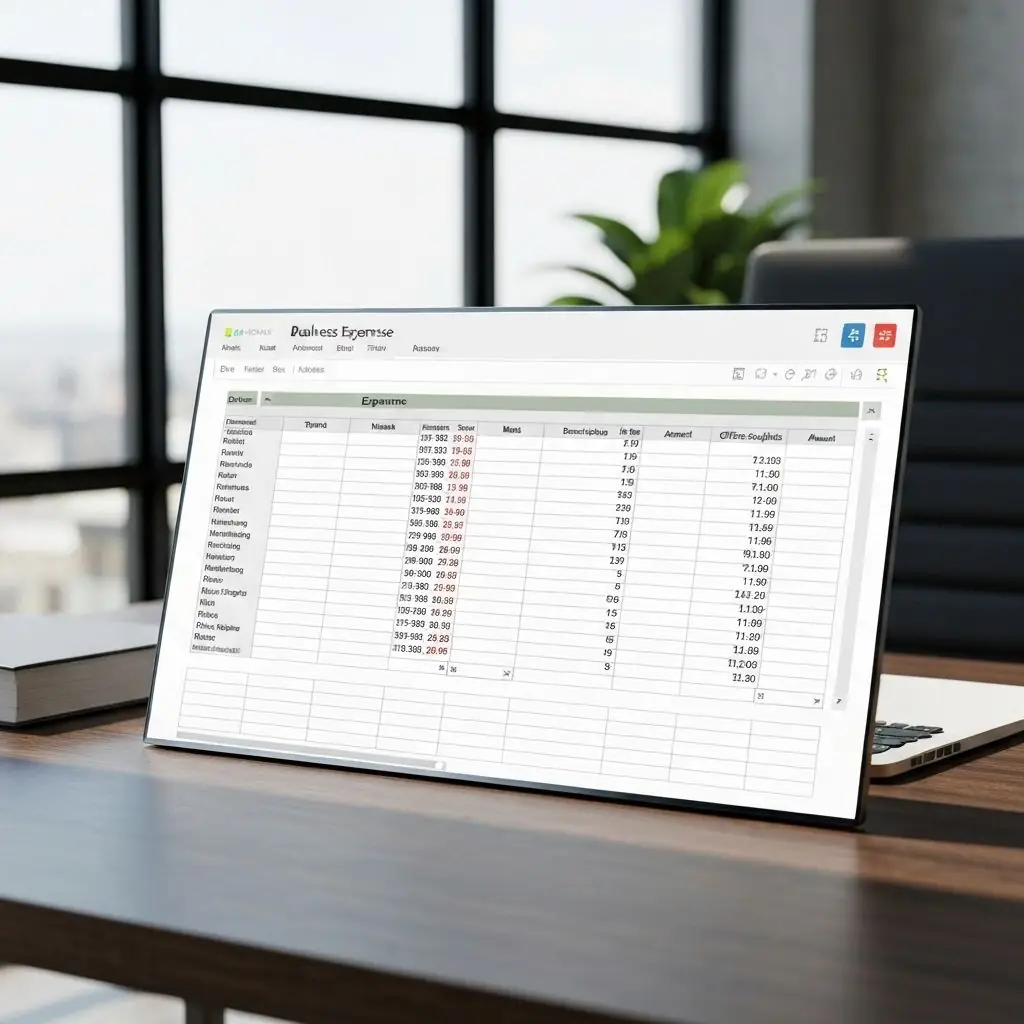
Simplify Travel Expense Tracking with CSV Reports
Expense reporting is the least glamorous part of business travel. Receipts get lost, spreadsheets become inconsistent, and finance teams chase employees for missing details. TripCache eliminates that chaos by turning your travel history into clean CSV files ready for any accounting workflow.
Why Traditional Travel Expense Tracking Fails
Most companies still rely on manual spreadsheets or expense tools that require double entry. That leads to:
- Missing receipts because travelers forget to upload docs.
- Inaccurate mileage totals when trips span multiple segments.
- Slow reimbursement cycles that frustrate employees.
- Compliance risks when auditors can't see the full trail.
How TripCache CSV Reports Work
TripCache automatically collects the data you need the moment a booking email is forwarded. Generating a report is simple:
- Open the Reports tab inside TripCache.
- Choose a date range (weekly, monthly, quarterly, or custom).
- Filter by traveler, tag, or trip type (business vs. personal).
- Export a CSV file that drops straight into Excel, Google Sheets, or corporate expense software.
Fields Included in Every Report
Our CSV export is designed with finance teams in mind. Each row can include:
- Trip name and TripCache ID
- Traveler name and email address
- Segment type (flight, hotel, car, rail, event)
- Carrier, hotel brand, or vendor
- Departure and arrival cities with IATA codes
- Check-in/check-out or departure/arrival timestamps
- Confirmation numbers and ticket numbers
- Fare class and cabin (when provided)
- Currency, total amount, taxes, and notes
- Tags (e.g., "Client A", "Conference", "Billable")
Integrating Reports with Finance Tools
TripCache CSV files are compatible with popular platforms:
- Concur and SAP: Map columns to expense categories automatically.
- QuickBooks Online: Import transactions and reconcile with corporate cards.
- Expensify and Ramp: Attach the CSV to expense reports as source-of-truth documentation.
- NetSuite & Xero: Use custom import templates to keep ledgers audit-ready.
Best Practices for Accurate Expense Data
- Tag trips at creation. Label itineraries as business, client, or internal travel.
- Attach receipts. Forward hotel folios and meal invoices so everything lives with the trip.
- Review before export. Quickly scan the dashboard to confirm segments and costs.
- Schedule recurring exports. Finance teams love predictable reporting cadences.
- Share access. Invite finance or operations team members with viewer permissions.
Sample Workflow for Road Warriors
- Forward every booking confirmation to TripCache.
- Open the app after each trip to attach any additional receipts.
- At month end, export a CSV filtered by "Business Travel".
- Email the file (or upload) to corporate finance with notes about billable clients.
- Archive the report in your document storage for future reference.
Automate Compliance and Audits
TripCache keeps a tamper-resistant history of every trip segment. Auditors can see:
- When a booking was added and by whom.
- The original confirmation email or PDF.
- Any notes explaining client codes or project IDs.
- A full paper trail proving policy compliance.
Close Your Expense Reports Faster
Travelers should spend time with customers, not spreadsheets. TripCache's CSV exports free you from manual entry so you can submit accurate reports in minutes. Sign up today, forward your next booking, and experience stress-free travel expense tracking.
About Emily Rodriguez
The TripCache team writes about travel email automation, cancellation reminders, document organization, and expense workflows for frequent travelers.
Continue Reading
Best TripIt Alternatives in 2026: Email Import, Documents, Reminders, and Expenses
Compare the best TripIt alternatives for travelers who want email import, document storage, cancellation reminders, maps, expense exports, and modern mobile workflows.

AI Travel Organizer App: Turn Booking Emails, PDFs, and Trip Details Into One Itinerary
Learn what an AI travel organizer app should do, how email-to-itinerary workflows work, and why booked-trip organization is different from generic AI trip planning.

Hotel Cancellation Reminder App: Never Miss a Free-Cancellation Deadline
Learn how to track hotel free-cancellation windows, local cutoff times, confirmation numbers, and reminder timing before a refundable stay becomes non-refundable.
Turn travel emails into organized trips
Download TripCache to forward booking emails, track cancellation deadlines, and keep trip documents ready when plans change.
Download TripCache